Getting started
Sign in, find your way around the console, and get your first call working.
Sign in
- Open https://console.ownpbx.in.
- Choose Business and sign in with the admin email and password from your welcome email.
- Change your password: click your name at the top right and choose Change Password. This also signs you out on any other device.
The two workspaces
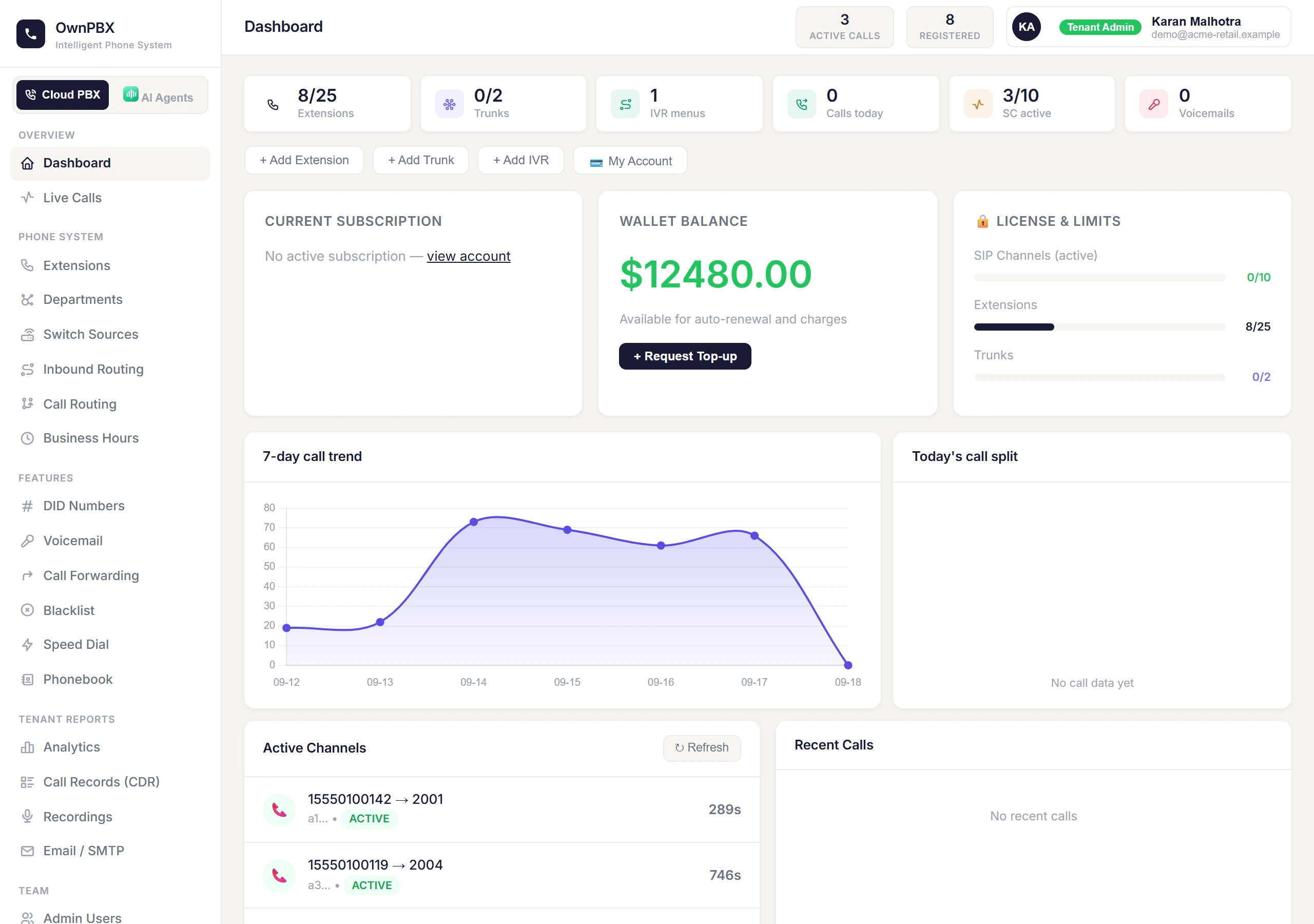
The console has two workspaces, switched from the toggle at the top of the menu:
| Workspace | What it's for |
|---|---|
| PBX | Extensions, phone numbers, call routing, IVR, queues, recordings, reports and billing. |
| AI Agent | Creating and testing AI voice agents, their knowledge base and voices, and reviewing their conversations. Shown only if AI agents are included in your plan. |
Your first working call
- Create two extensions (PBX → Extensions).
- Connect a softphone or desk phone to each — or sign in to one as an Agent in the browser.
- Dial one extension from the other to confirm calling works.
- Point a phone number at an extension, IVR or queue (PBX → DID Numbers) to receive outside calls.