IVR, ring groups and queues
Build menus for callers, ring teams together, and queue callers for agents.
IVR / auto-attendant
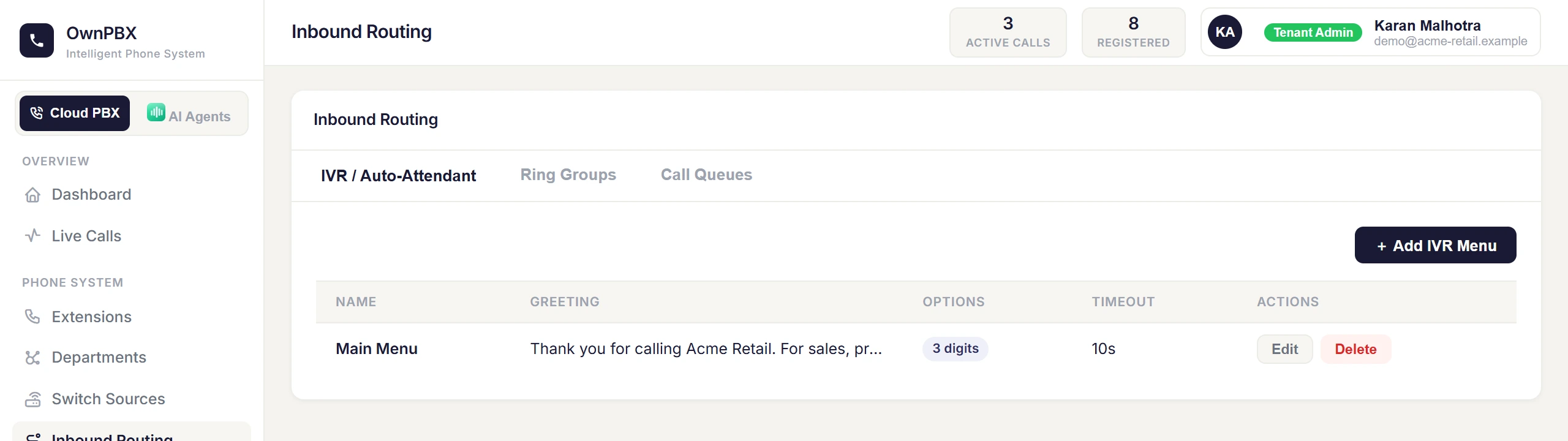
An IVR answers the call and plays options, like "Press 1 for Sales, 2 for Support".
- Go to PBX → Inbound Routing → IVR / Auto-Attendant and add an IVR menu.
- Enter a Menu Name and a Virtual Extension Number (the internal number for this menu, e.g. 825).
- Enter the Greeting — type the text and it will be spoken to callers.
- Add an option for each key and choose where it sends the caller.
- Route a phone number to the IVR (PBX → DID Numbers).
Ring groups
A ring group rings several extensions from one number.
| Field | Meaning |
|---|---|
| Name | A label, e.g. Sales team. |
| Virtual Extension Number | The internal number that rings the group. |
| Ring Strategy | Ring All rings every member at once. Prioritized Hunt rings members one after another in priority order. |
| Ring Timeout (sec) | How long to ring before giving up. |
| Destination if No Answer | Where the call goes if nobody picks up. |
Call queues
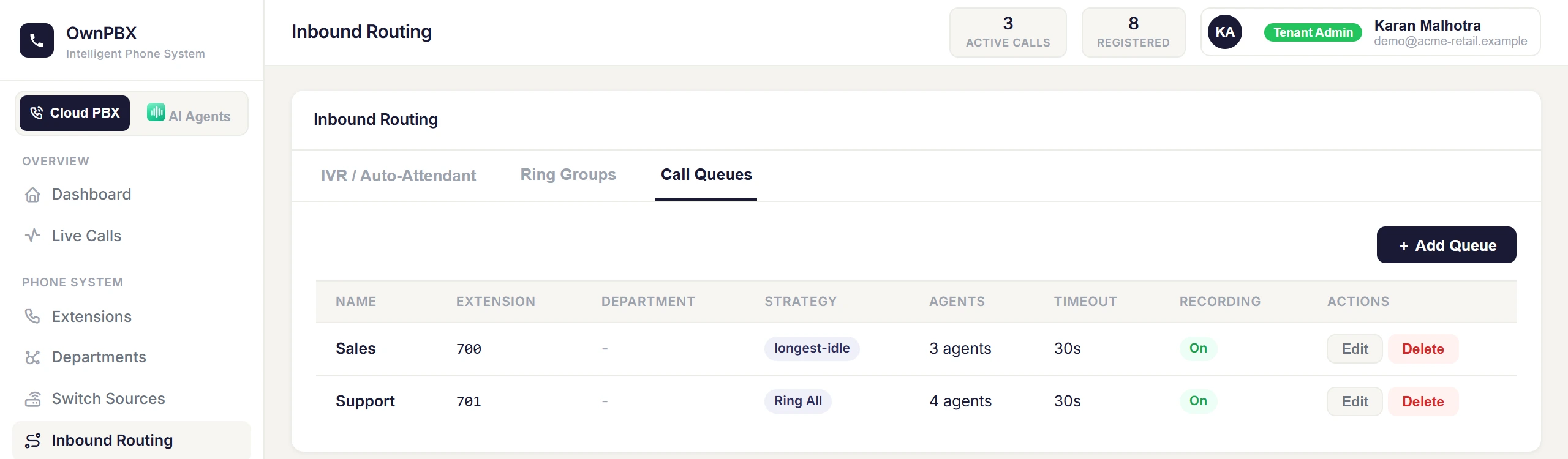
A queue holds callers until an agent is free, and tracks how long they waited. Add a queue under PBX → Inbound Routing → Call Queues, add the agents' extensions, then route a number to it.
Watch queues live in Analytics → Queue Wallboard.